Managing Products
Your products available on Marketplace are managed through Maker Console; here you can update the metadata, media images, submit new versions, and more.
On this page, you'll learn more about:
Updating the details of your product.
How to change the icon, thumbnail, and gallery items of your product.
Submitting new versions of products.
Changes made in Maker Console may take a few hours to reflect on Marketplace.
Accessing Your Products
Your Marketplace products are managed in Maker Console. To access your products, log in to Maker Console and navigate to Products; this page provides a list of all of your products, including draft, published, and unpublished products — selecting a product will take you to the product's page, allowing you to update it or submit a new version.
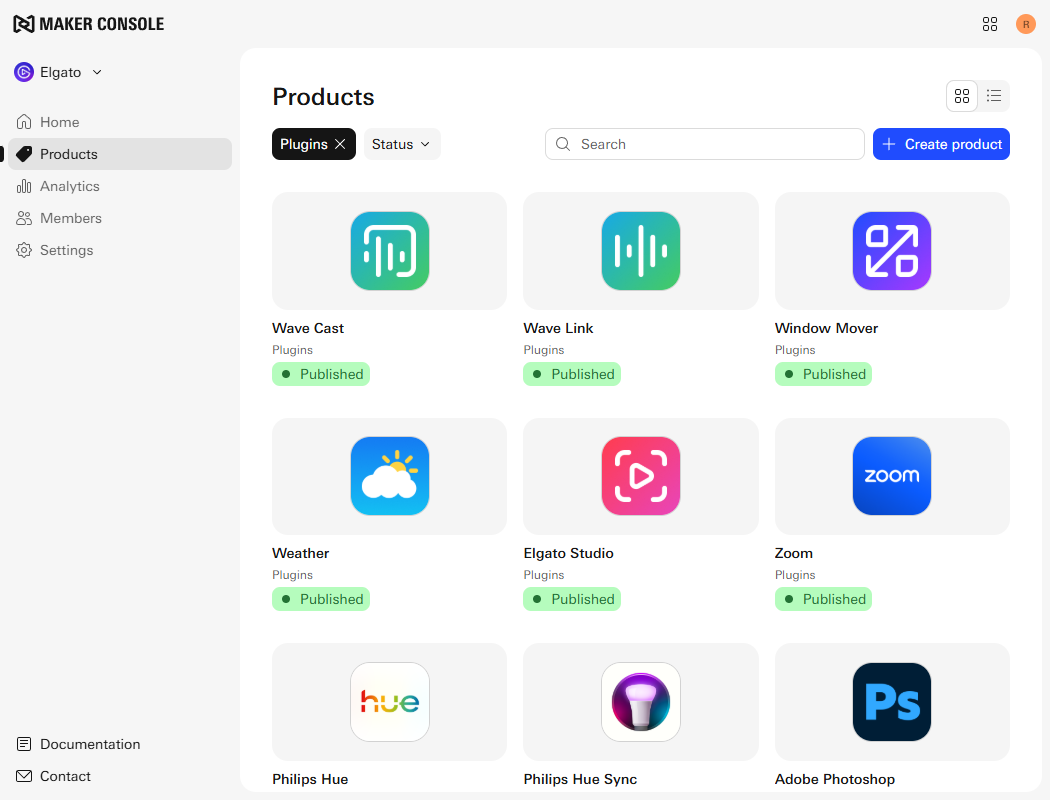
Card View
Visual list of products that includes the product's name, extension (such as plugin or icon pack), and its publish status.
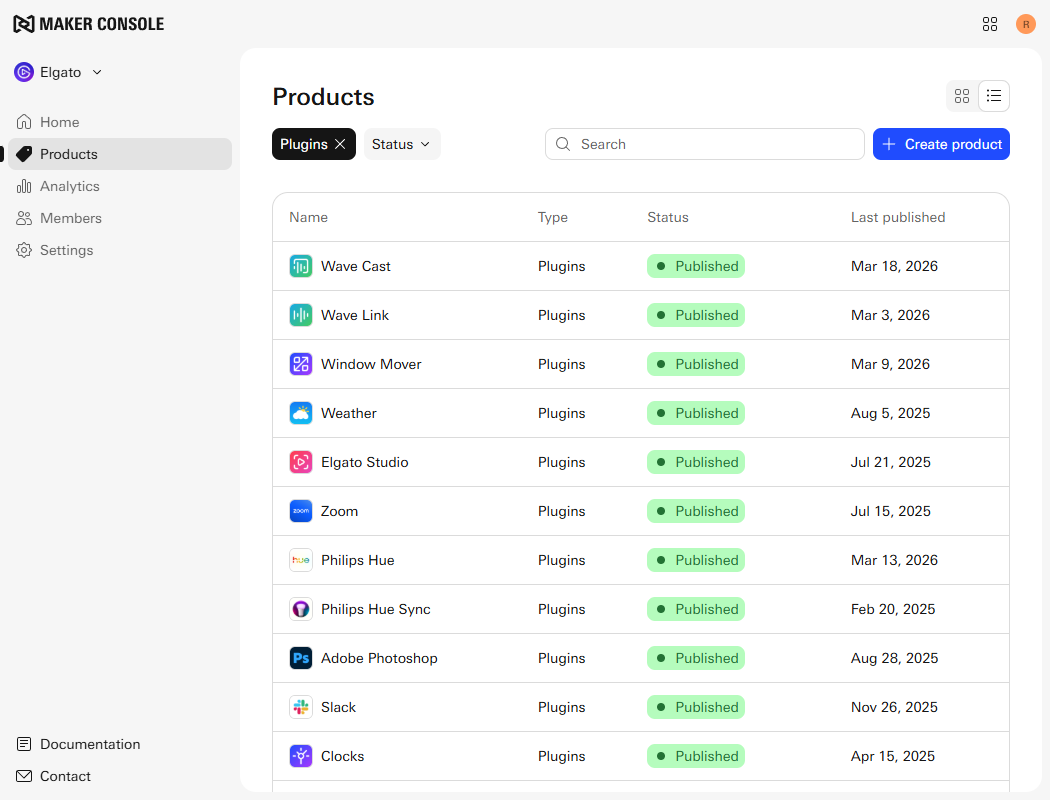
List View
Table of products that includes the product's name, extension (such as plugin or icon pack), its publish status, and when it was last published.
Details
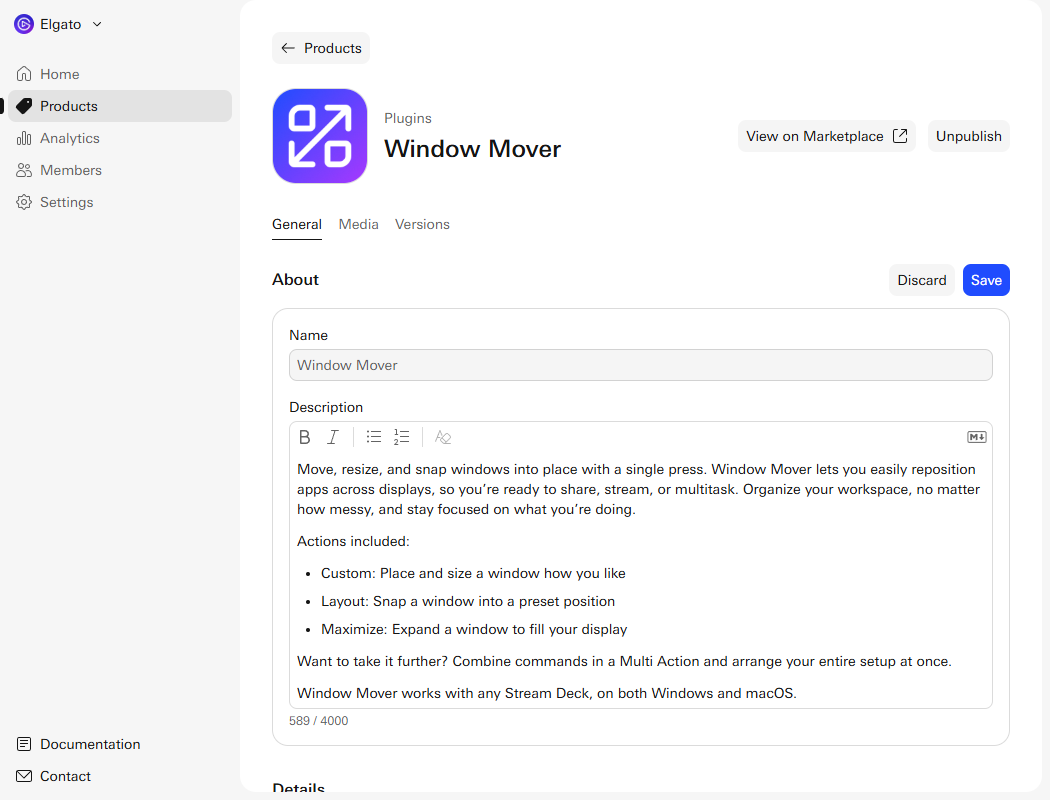
Your product's details can be accessed and managed by selecting your product within the Products page in Maker Console; once on your product's page, the following details can be updated:
Description — main description of your product.
Language — list of supported languages.
Type — the category your product is for, such as "Audio", "Development", etc.
Additional Links — support links and links to resources, etc.
You can learn more about the detail requirements in product guidelines.
Your product's name and monetization options cannot be changed in Maker Console. Should you wish to change these, please contact us at maker@elgato.com.
Media
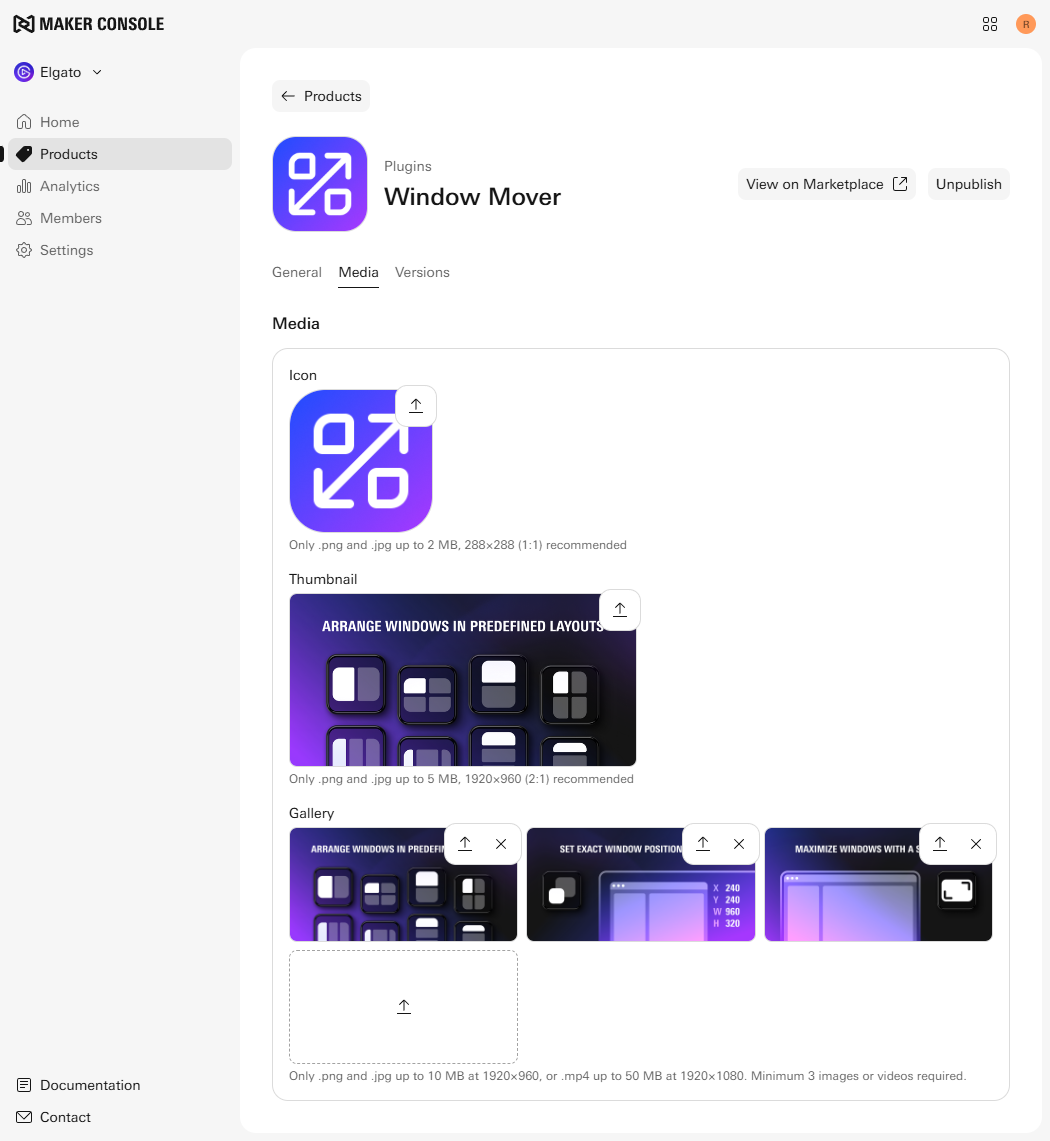
Media associated with your product can be managed by selecting the Media tab from your product's page in Maker Console; here you can change or remove media, including the:
Icon (plugins only)
Thumbnail
Icon previews (icon packs only)
Gallery images
You can learn more about the media requirements in product guidelines.
It is not currently possible to re-arrange or sort the order of gallery items; should you wish to change their order, please remove and re-add them in the preferred order.
Versions
All past and present versions of your product can be found within the Versions tab; here you can:
Submit a new version.
View the status of a version.
Download previous versions.1
View release notes of previous versions.
1 only applies to plugins; plugins downloaded from Maker Console are DRM protected, if they are marked as DRM compatible.
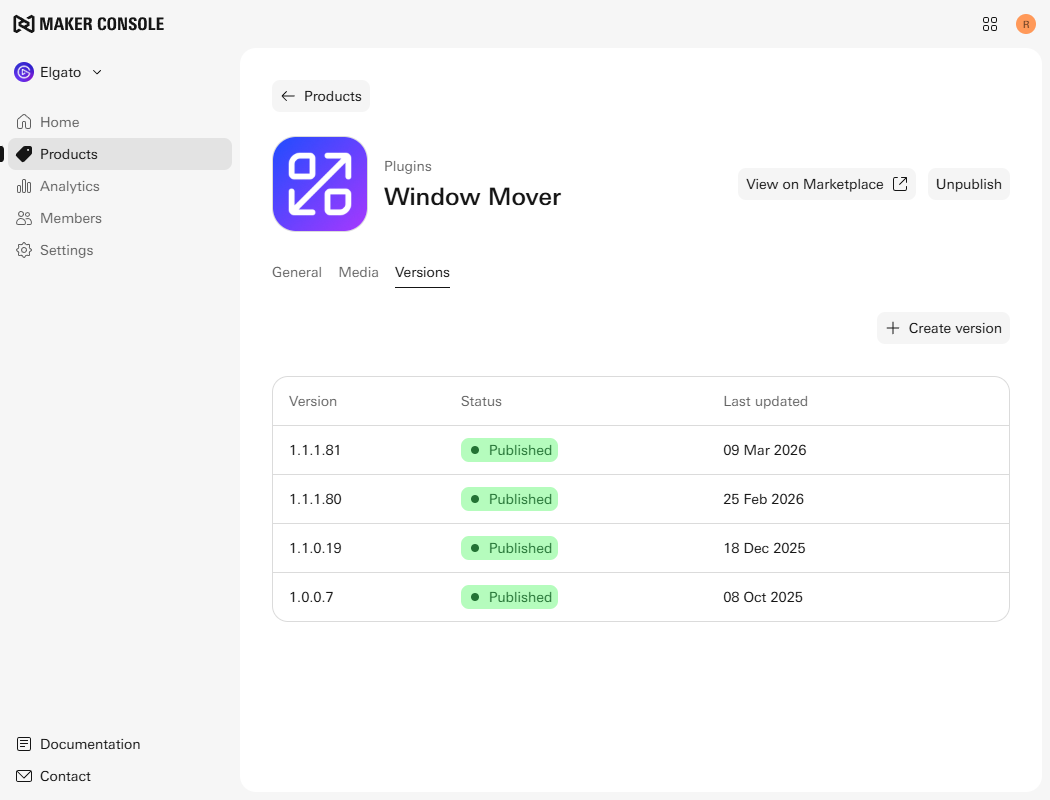
Only the most recent approved version of your product is available to users on Marketplace.
Creating Versions
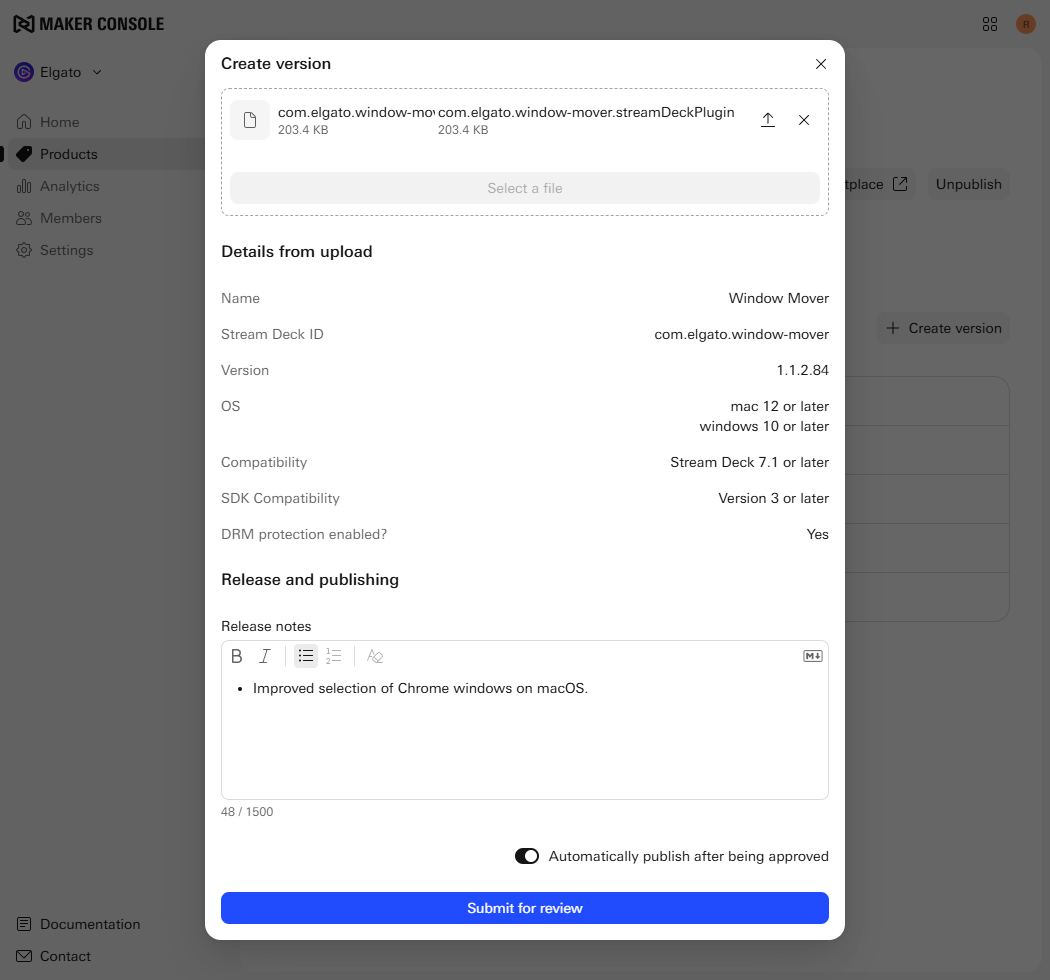
Within the Versions tab, you can submit a new version for review by selecting the Create version button. To submit a new version, you will need:
The product file, such as the packaged Stream Deck plugin or Stream Deck icon pack.
Release notes.
Specify if the product should be automatically published after being approved.
Go-live Dates
In scenarios where your product must go live on a specific date, such as to align with a marketing campaign, the product must be submitted with Automatically publish after being approved set to unchecked.
Following review and approval, you will then be able to manually release the product version in the Versions tab by selecting the Release button.
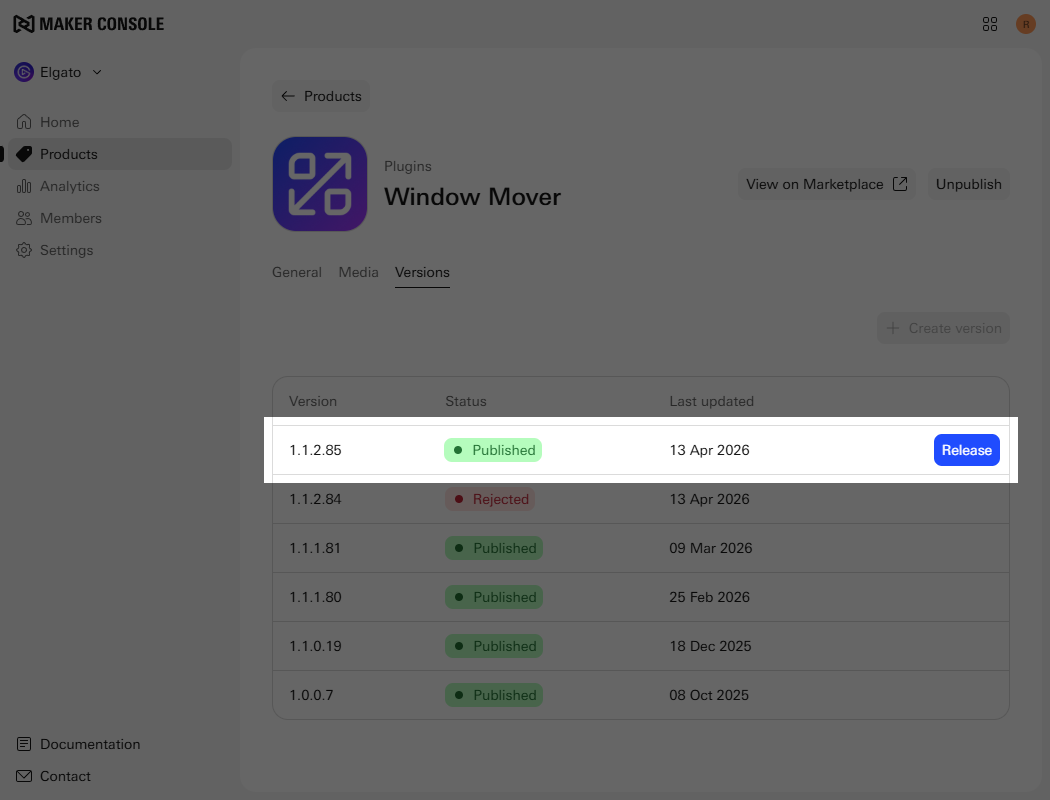
All products are subject to review. Please ensure there is sufficient time between submission and the planned go-live date. Review times may vary, and during busy periods the process can take 4–10 business days.
Learn More
Understand more about the review process.
Submit a new product to Maker Console.
Inviting team members to your organization to manage products.