Organization
Organizations, also referred to as Makers, represent you as a creator or business on Marketplace. You can submit and manage products using Maker Console. Organizations are also publicly visible on Marketplace, allowing users to learn more about you, access your support and social links, and discover the products you’ve published.
On this page, you'll learn more about:
Updating your organization in Maker Console.
Inviting members to your organization.
What each member role has permission to do.
Profile
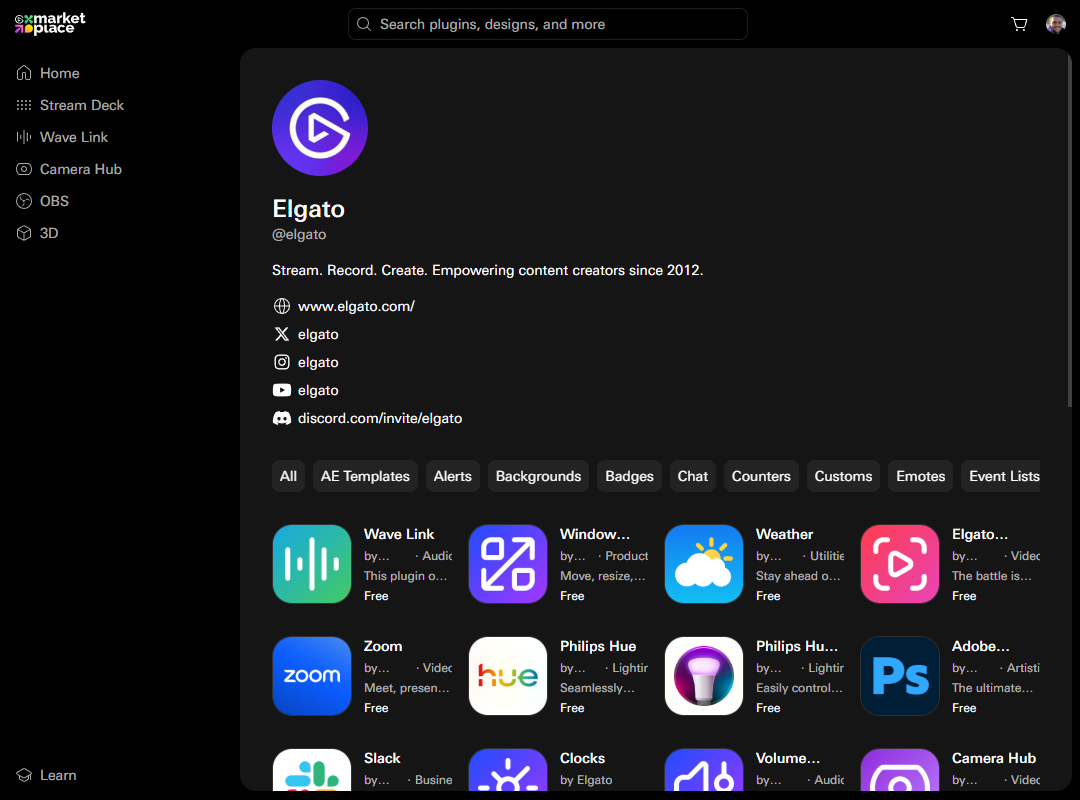
When an organization is created in Maker Console a public profile is also created in Marketplace; this allows users to:
Learn more about you as a creator or business.
Find links to product support and your socials.
Discover other products you have available.
These profiles are accessible using an organization's unique handle, for example @elgato.
Settings
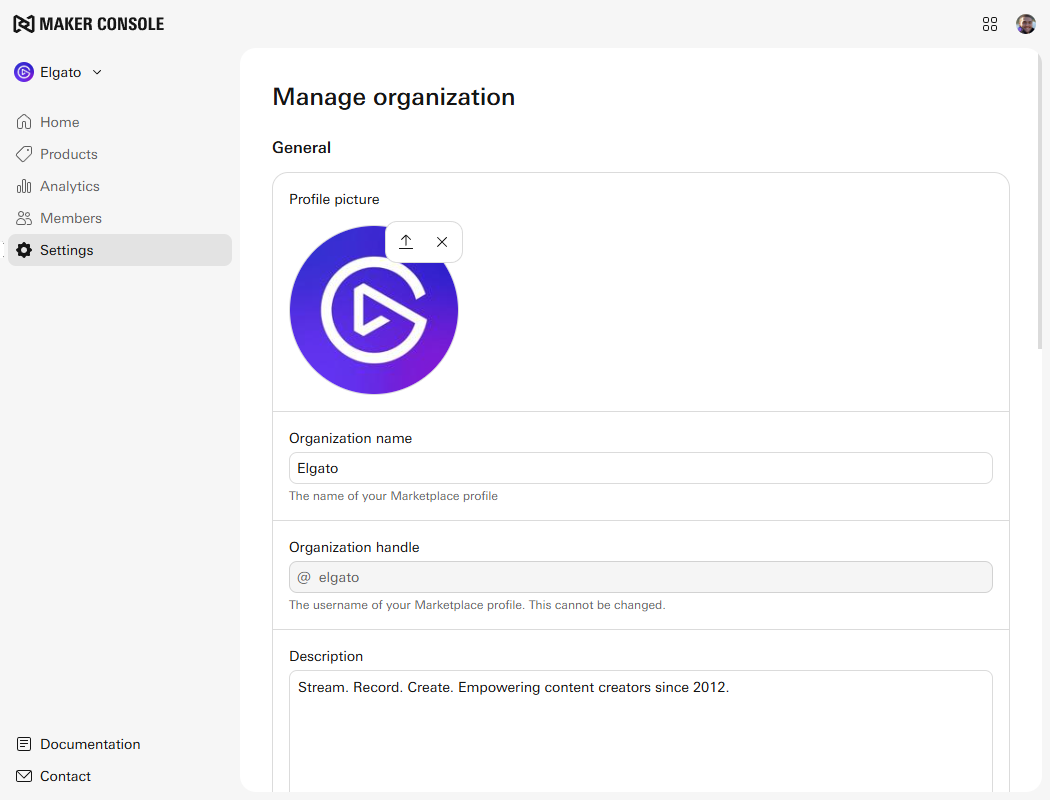
All information associated with your organization is managed in Maker Console. After signing in, you can access your organization’s settings by selecting Settings from the navigation menu. This will take you to the Manage Organization page, where you can:
Update your profile, including profile picture and description.
Manage links to your socials.
Choose the preferred support method for your products, either a link or email.
Access your Stripe Connect account.
View the latest Maker Agreement.
Changes made in Maker Console may take a few hours to reflect on Marketplace.
Members
Organizations can include multiple members, enabling your team to collaboratively manage your presence on Marketplace. Each member is assigned a role that determines what they can do — for example, creating new products, editing your organization’s settings, or viewing product analytics.
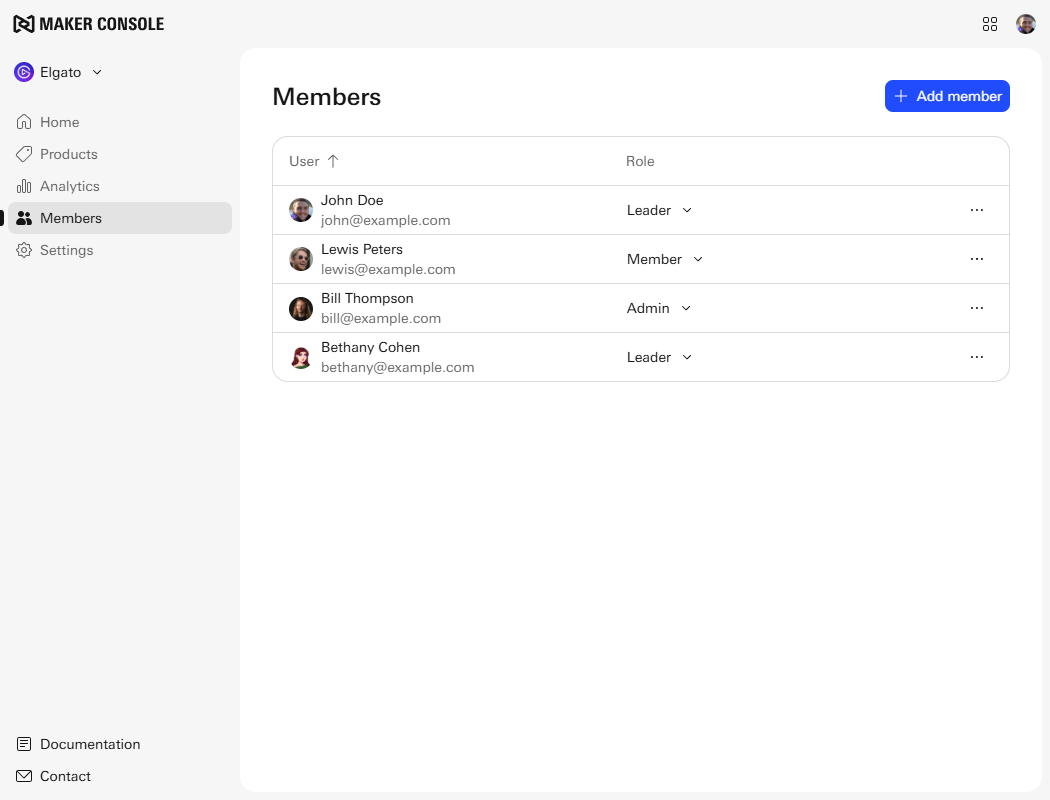
To manage your organization’s members, sign in to Maker Console and select Members from the navigation menu. From this page, you can:
View the members currently in your organization.
Invite new members to join. * Member invitation links expire after 24 hours.
Update a member’s role.
Remove members from the organization.
Roles
The following tables outline the permissions associated with each role in an organization within Maker Console.
Products
Leader | Admin | Member | |
|---|---|---|---|
Create new products | ✅ Yes | ✅ Yes | ✅ Yes |
Manage existing products | ✅ Yes | ✅ Yes | ✅ Yes |
View product analytics | ✅ Yes | ✅ Yes | ✅ Yes |
Organization
Leader | Admin | Member | |
|---|---|---|---|
Edit organization profile | ✅ Yes | ✅ Yes | ❌ No |
Delete organization | ✅ Yes | ❌ No | ❌ No |
Members
Leader | Admin | Member | |
|---|---|---|---|
Invite members | ✅ Yes | ✅ Yes | ❌ No |
Remove members | ✅ Yes | ✅ Yes | ❌ No1 |
Change member roles | ✅ Yes | ✅ Yes | ❌ No |
View invite activity | ✅ Yes | ✅ Yes | ❌ No |
1 members can remove themselves from an organization.
Stripe and Monetization
Leader | Admin | Member | |
|---|---|---|---|
View financial reports | ✅ Yes | ✅ Yes | ❌ No |
Manage Stripe Connect settings | ✅ Yes | ❌ No | ❌ No |
Assistance with your organization
If you need assistance with changes or updates to your organization, such as Stripe support, access, membership management, or a display name change, please reach out to the Marketplace team at maker@elgato.com.