Stripe Connect
The Elgato Marketplace utilizes Stripe Connect for its payments. When signing up with Stripe, you will be asked to provide your bank account information to receive payments. Please ensure all this information is correct. When you make sales, Stripe will send direct payments to this account.
All Stripe emails will be sent to your Support Email on file. Because Stripe is where we also process refunds, this will be connected to your provided Support Email to keep your private information separate from Creators.
Stripe Payments
Your Elgato Marketplace representative will send you a one-time link to connect our Stripe payment system to your bank account. Stripe will deposit directly into your account as you continue to make sales.
For issues regarding Stripe Payments, please reach out to your Elgato Marketplace representative.
Country Availability
Stripe Connect provides support for a wide-selection of countries, but not all countries are supported. In the event your country is not supported by Stripe Connect you will not be able to list paid products on Marketplace, but can still list free products.
The following is a list includes countries supported by Stripe Connect, and is accurate as of July 31, 2026. For the most up to date list, please refer to Stripe.
Europe
Austria
Belgium
Bulgaria
Croatia
Cyprus
Czech Republic
Denmark
Estonia
Finland
France
Germany
Gibraltar
Greece
Hungary
Ireland
Italy
Latvia
Liechtenstein
Lithuania
Luxembourg
Malta
Netherlands
Norway
Poland
Portugal
Romania
Slovakia
Slovenia
Spain
Sweden
Switzerland
United Kingdom
North America
Canada
Mexico
United States
Asia-Pacific
Australia
Hong Kong
India (preview)
Indonesia (preview)
Japan
Malaysia
New Zealand
Singapore
Thailand
Africa
Ghana
Kenya
Nigeria
South Africa
Middle East
United Arab Emirates
Adding Bank Account for Payouts
To add your bank account information to your Stripe Connect account:
Log in to the Stripe Dashboard
Select Payouts from the left navigation menu
Select Settings in the top right
Under Bank Accounts and Scheduling, select Add Bank Account
Choose your country from the drop-down list, and provide your bank details
Ensure the information matches exactly as it appears on your bank account records. Any discrepancies can cause delays in your payouts.
Verify Your Bank Account
Some banks require account verification before receiving payouts. Stripe will make two small trial deposits into your bank account if this is the case. You must confirm these amounts in the Stripe Dashboard to verify your account.
Receiving Payouts
Once everything is set, Stripe will deposit your earnings from Elgato Marketplace directly into your bank account based on the payout schedule you choose.
Receiving your well-earned payouts should be smooth and efficient with the correct setup and verification. If you need further assistance or have queries about Stripe Payouts, please get in touch with your Elgato Marketplace representative.
Setting Up Payout Schedule
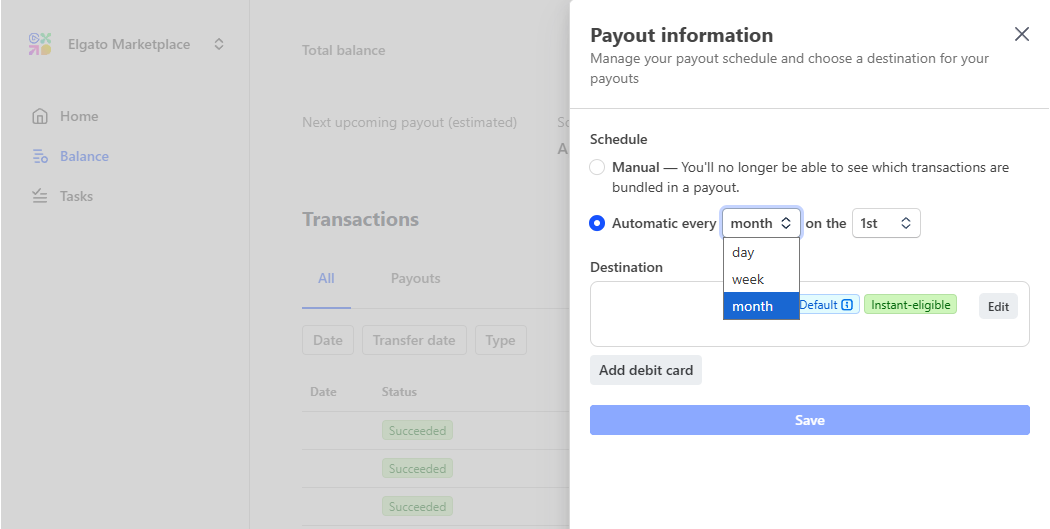
After adding your bank account, you can choose how often you'd like to receive payouts. You can choose to receive payouts manually, daily, weekly or monthly. To change your payout schedule:
In the Payout Schedule section, select Update and choose the preferred frequency.
Click Save.
Please note that the payouts may take a few business days to reach your bank account due to banking procedures and holidays.