Packaging
Once your Profile is ready, you will need to export and bundle it into a .ZIP file before it can be shared or submitted to the Elgato Marketplace. Before exporting, make sure your profile name and all associated information are correct, as this is what users will see when browsing and downloading your profile. If you plan to release separate profiles for different Stream Deck devices, it is recommended to reference the device type in the profile name (for example, MIDI Controller — Stream Deck XL) to help users identify the correct profile for their setup.
Exporting and Bundling a Stream Deck Profile
In the Stream Deck app, right-click on your device profile and select Edit Profile.
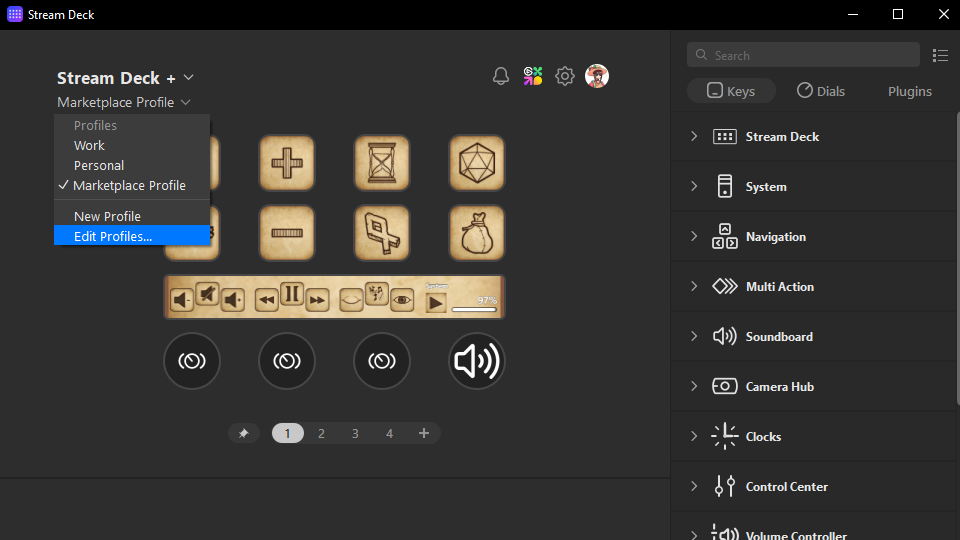
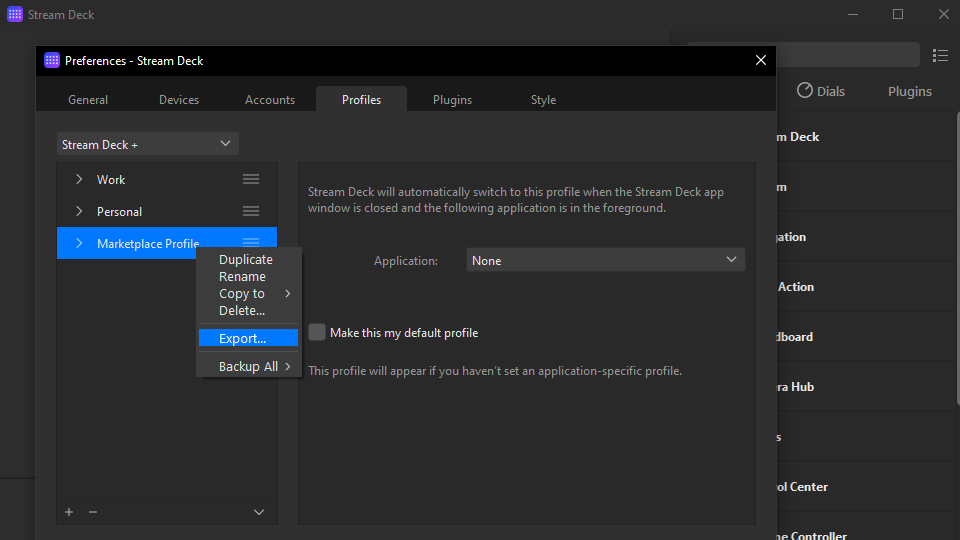
Verify that your profile name and information are correct. Then right-click the profile you wish to export and select Export.
Save your profile, ensuring the
.streamDeckProfilefile extension is preserved.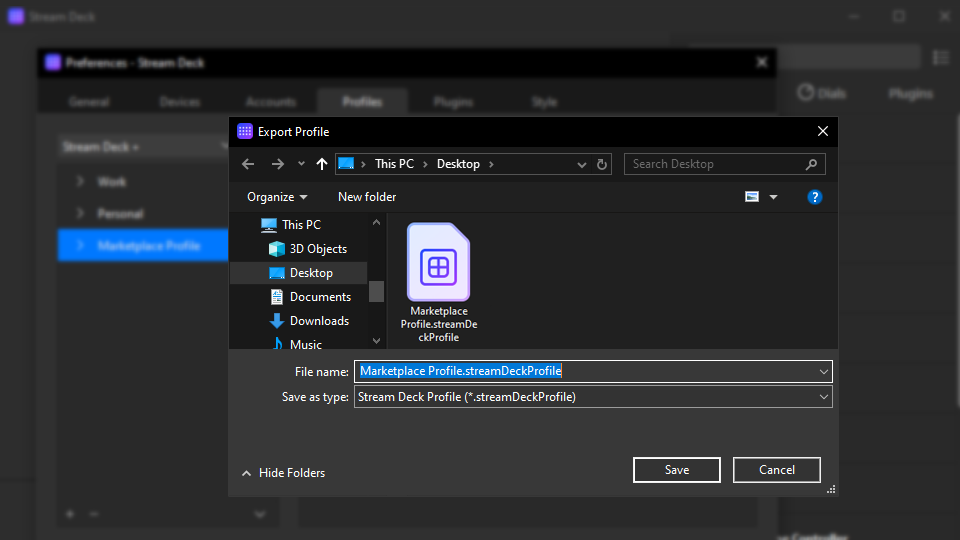
Bundle your
.streamDeckProfilefile along with any additional files (such as icons, guides, or scripts) into a.ZIPfile. This is the file you will upload to the Marketplace when submitting your product.
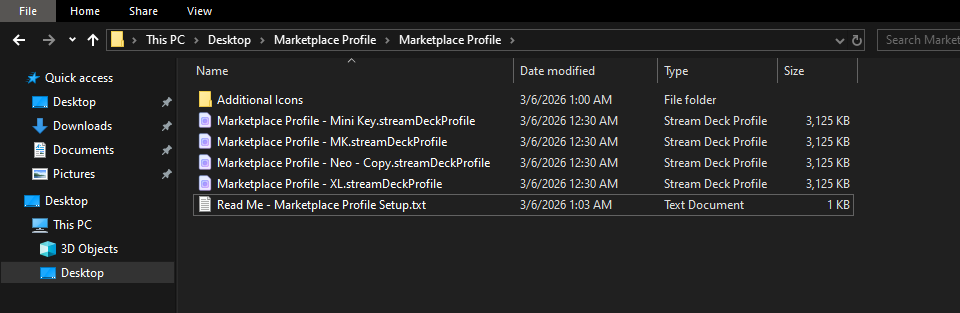
Once complete, you can share your bundled profile file. If you plan to upload it to the Marketplace, please follow the profile submission guidelines within the Maker Console.
Additional Files
Profiles are distributed as .ZIP files to users. Because of this, the inclusion of multiple profile files and additional files is often the case by our Makers. There is no limit to what additional files you can provide along with your profiles to benefit the user in their setup and use of your profile.
Icons, graphics, and
.streamDeckIconPackfilesREADME and licensing text files
Setup and support guides
Scripting files
Installation files (such as
.exe) to assist with profile setup and include any additional dependencies. This is common in some gaming profiles for flight control and sim racing.
Icons
Any icons created as part of the profile will export automatically. However, if you wish to attach an icon pack, you will want to provide the .streamDeckIconPack file within the .ZIP containing all files needed for the profile. While not required to function, some users like to add additional icons to match their profile or edit it further using the Stream Deck icon library within the Stream Deck app.
If you are bundling an icon pack that is also published on the Marketplace, please ensure it uses a unique UUID. This prevents conflicts with ownership and purchase transactions for the original listing.
Publishing Profiles
Learn about how to publish your products on Marketplace
Publishing Version Updates
Profiles are not automatically updated or changed on the Stream Deck device when a Maker creates an update. Users will need to re-download and set up a new profile when an update is released. This is intentional to prevent auto-updates from disrupting any changes a user might have made to their installed profile.